
1 Open the file Lilies.psd, which accompanies this tutorial, or use your own motif.

2 Select your seed image using any of the selection tool in Photoshop and launch SymmetryShop by choosing File > Automate > Artlandia SymmetryShop....
3 In the SymmetryShop palette, click the Glide reflection button, set the tiling size to 2 × 3, and click OK to return to Photoshop.
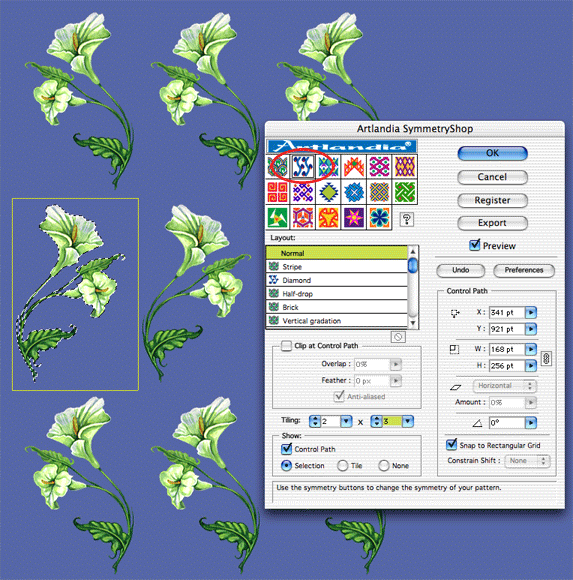
4 Choose Select > Deselect or press Ctrl-D (Windows) or Command-D (Mac OS). You do not need to worry about the selection any longer because SymmetryShop recorded it in the SymmetryShop Selection channel and will use it when you want to rebuild the pattern. (You can see the channel in the Channels panel.)
5 For the Glide reflection symmetry setting, every other row of your pattern is a reflection of an adjacent row. You will now adjust the control path so that reflected images get closer to the original ones to form vines. You will also bring vines closer to each other. Feel free to peek at the pattern in the end of the tutorial. The intermediary steps will then make more sense.
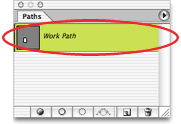
When SymmetryShop created the pattern, it saved the control path as a work path in your document. The path is called the "control path" because SymmetryShop uses the path size and orientation to build your pattern. You can edit the path using the usual Photoshop tools. To begin, open the Paths palette (Window > Paths) if it is not open and click the Work path.
6 Choose the Direct-Selection tool in the Photoshop toolbox, click the upper side of the work path and drag it down a little past the smaller lily. You can press the Shift key as you drag to keep the rectangular shape of the path (or not worry about that because SymmetryShop will rebuild the control path should your edits destroy its rectangular shape).
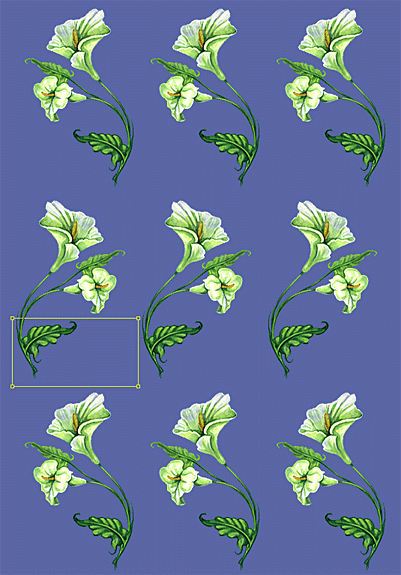
7 You are now ready to rebuild the pattern to take into account your smaller control path. Instead of going through the File > Automate menu after each edit, you will create a Photoshop action that runs the plug-in automatically. The following steps assume that you have not yet recorded an action to run SymmetryShop. If you have, skip directly to Step 12.
Start by opening the Actions palette if it is not open (Window > Actions).
8 In the Actions palette, click the Create new set button (or select another subset where you want to put your new action). Then click the Create new action button.
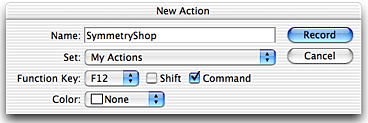
9 In the New Action dialog, fill in the name of your new action (for example, "SymmetryShop"), choose a function key (for example, F12), and select the Ctrl checkbox (Windows) or the Command checkbox (Mac OS). You can choose any other name or key combination you like and click Record.
10 The action you create will be very simple. Launch the plug-in by choosing File > Automate > Artlandia SymmetryShop... and click OK. This rebuilds your pattern and returns you to Photoshop.
11 Click the Stop playing/recording button in the Actions palette. Your action is ready. From now on, you can launch the plug-in by playing the action using the keyboard shortcut, which may be more convenient than going through the menu.
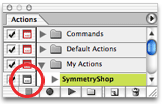
12 It is often even more convenient to toggle the action's dialog off. This will let SymmetryShop rebuild your pattern without asking any questions, which is what you want for interactive work on your pattern. Toggle the dialog off now by clicking the dialog icon.
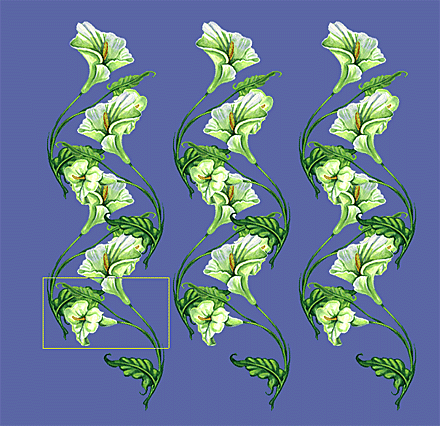
13 Back in your pattern, notice that the distance between pattern rows decreased following the reduction in the height of the control path. However, you still need to move the reflected rows to the left so that stems intervene and make vines.
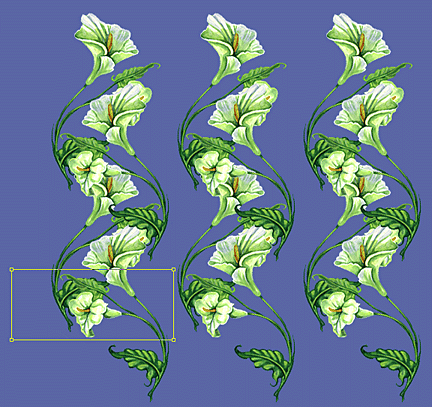
14 With the Direct-Selection tool, click the left side of the control path and drag it to the left to make the control path about 25% wider.
15 Alt-click the control path (Windows) or Option-click (Mac OS) to select the entire control path and drag the control path as a whole to the left. Rebuild the pattern by pressing the shortcut you chose for the SymmetryShop action.
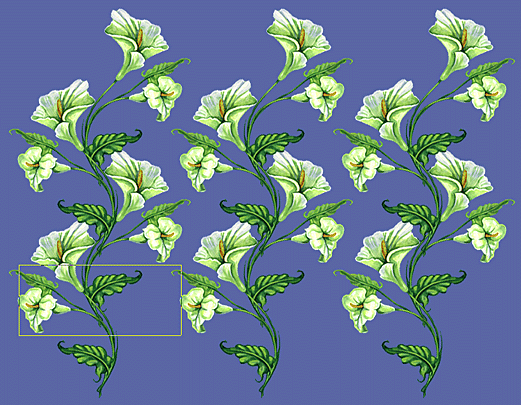
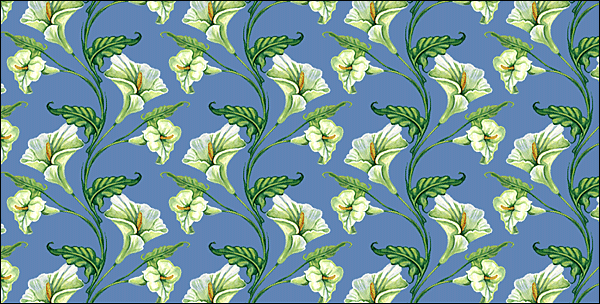
16 Your pattern is almost ready, but you can fine-tune the control path still more to align stems better. The final pattern may look like the one at the bottom of this page.
You can make the pattern a little more interesting by creating a repeat pattern in the background. For step-by-step instructions, see another Artlandia SymmetryShop tutorial, "Repeating Backgrounds for Repeat Patterns".




 Lilies (PSD, 0.5MB)