
1 Open the file LiliesMono.psd, which accompanies this tutorial. The file contains a pattern of lilies created in another SymmetryShop tutorial, "Putting Designs in Repeat in Photoshop". You can also use your own pattern created with SymmetryShop.
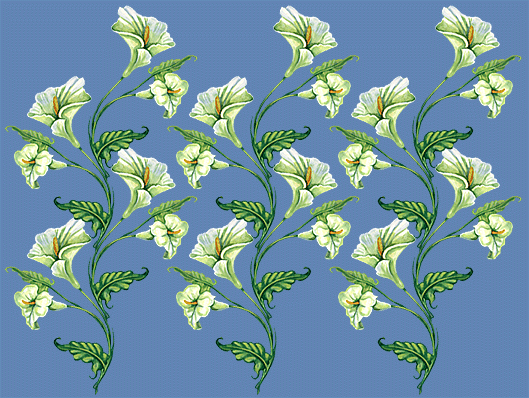
There are three components in the file LiliesMono that were created by SymmetryShop and are now of interest: the SymmetryShop Layer (the pattern layer, which the plug-in rebuilds every time it runs), the SymmetryShop Selection (the channel that contains the selection that you used to create the pattern), and the control path (the work path that determines the repeat of your pattern).
2 First, you will duplicate the SymmetryShop Layer. Open the Layers palette (Window > Layers), Ctrl-click (Windows) or Command-click (Mac OS) the SymmetryShop Layer and select Duplicate Layer... from the pop-up menu. The new layer name can be anything you want as long it is not "SymmetryShop Layer". Let it be SymmetryShop Layer 1. This layer will retain the original pattern after the plug-in replaces the contents of the SymmetryShop Layer with a new pattern.
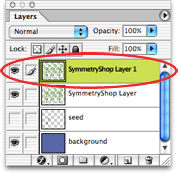
3 Next, dispose of the SymmetryShop Selection channel, which we don't need for the purposes of this tutorial. Click the SymmetryShop Selection channel and then click the Delete button. Or, if you want to work with the Lilies pattern later, you may rename the channel instead.
4 The control path you will leave alone. It will simply be there to ensure that your new pattern layer has exactly the repeat size you need.
5 With preparation out of theway, you are ready to create a new background pattern. First you will replace the uniform background with a gradient.
Click the background layer in the Layers palette to select it.
In the Photoshop toolbox, choose some combination of the foreground and background colors, for example, magenta and cyan, respectively. Click the Gradient tool in the toolbox, and then click somewhere close to the lower-left corner of the image and drag diagonally up to about the center of the image.

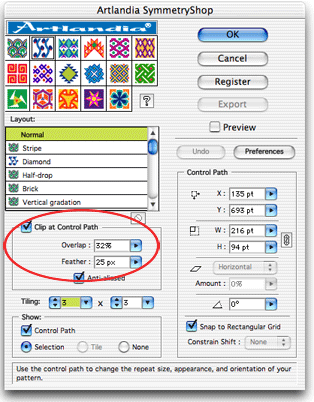
6 Launch SymmetryShop by choosing File > Automate > Artlandia SymmetryShop.... As no part of your gradient was selected, the plug-in will automatically select the region that is bounded by the control path. This is what you want. Increase the tiling size to 3 × 3 to see the repeat clearly.
Note that the Clip at Control Path checkbox is selected and so your pattern consists of a checkerboard created from a piece of your gradient. The repeat of your checker pattern is exactly the same as the repeat of the main Lilies pattern because both patterns share the same control path (and of course the same symmetry, which happened automatically because the plug-in re-uses the original settings when it rebuilds a pattern into an existing SymmetryShop Layer).
7 Your pattern is basically ready. To add the final touch, you may smooth away checkerboard boundaries by letting pieces overlap and feathering the strict rectangular selection. Some 30% overlap and the 25 px feather produce the pattern you find at the bottom of the page.
8 Click OK to return to Photoshop.

In more complex patterns, overlapping layers may have repeat sizes that differ by a factor or fraction, but that is a subject for another tutorial.




 LiliesMono (PSD, 1.3MB)