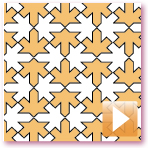

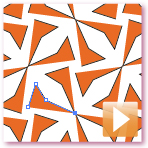
Just scribble something and click Make. Voila! The plug-in automatically duplicates selected elements and applies the necessary transformations to make a repeat pattern. Creating geometric patterns is a snap.
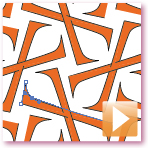
Once a pattern is created, SymmetryWorks keeps it hot-linked to the seed elements (motif). As soon as you edit the seed, the plug-in immediately updates the pattern.
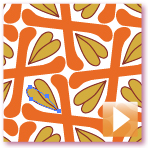
Adding elements to a pattern is very much like adding elements to a masked Illustrator artwork or a group: move a new element to the desired location, cut it, and paste using the Edit > Paste in Front (or Paste in Back) command.
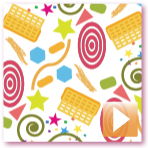
You can also draw directly into a pattern using the Pen, Pencil, Brush, or other Illustrator tools. Start from a blank canvas, if you wish. Build the motif as you go. Along the way, SymmetryWorks gives you a visual clue for the best area to insert new objects.
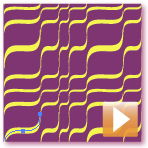
The SymmetryWorks panel brings you a cornucopia of design solutions. To change the pattern type, simply choose another arrangement by clicking one of the colorful symmetry buttons or take your pick from the Layout list.
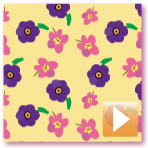
Replicas—live copies, hot-linked to your original seed objects—let you make your patterns as symmetric (or asymmetric) as you like. Create replicas with a click and put them anywhere in the pattern. Rotate, reflect, and scale as needed. SymmetryWorks remembers your transformation and automatically rebuilds the replica art when you edit the original.
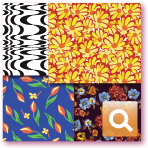
All-over and tossed designs, spot (sateen) repeats, irregular (step or sliding) repeats, composite repeats, gradations and optical patterns, and a great many other types of designs you have seen on textiles and elsewhere, are made simple with replicas.
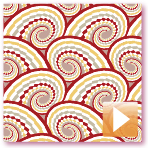
Spawn multiple replica copies (multi-replicas) by applying the same transformation over and over. Simply select a replica handle and choose how many progressive copies you want.
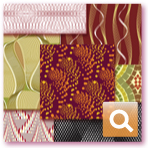
Quickly produce rotational designs, spirals, mosaics, gradations, and other arrangements. Automatically generate check patterns, eccentrics, guilloché backgrounds, and other linework—or optical, moiré, and other special effects.
Apply the same pattern recipe to different motifs. Make a geometric pattern today and a floral pattern tomorrow. Set the exact repeat size with a single click. Choose from a variety of built-in layouts and easily add your own.
SymmetryWorks supports all your workhorse Illustrator features: clipping masks, compound paths, compound shapes, transparency, brushes, blends, gradients, meshes, symbols, all classes of type, live effects, and others. Come back and edit your patterns at any time. Unlike built-in Illustrator patterns, SymmetryWorks patterns keep your complex Illustrator objects editable and live!
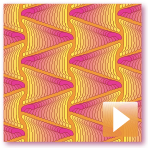
Put your Illustrator blends in repeat. Edit blend components or change blend options and see your pattern instantly updated. If you have never used blends, you will want to find out about them now. They are fantastic with SymmetryWorks.
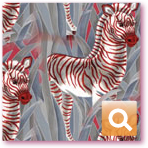
SymmetryWorks also fully supports raster (pixel-based) images. Place your Photoshop, TIFF, PNG, JPEG, or GIF files (or images in any other format supported by Illustrator) and instantly put them in repeat. Embed your images or link them in. Use a part of an image if you want. Clip to a default geometric region or any Illustrator—or Photoshop!—mask. Feather the edges away or dissolve them with an opacity mask.
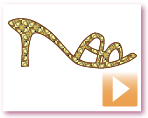
Save your SymmetryWorks pattern as an Illustrator swatch with a click. The swatch immediately becomes available as a seamless pattern in the Swatches panel.
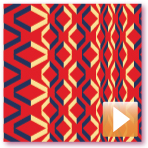
Save a SymmetryWorks pattern as a symbol and it immediately becomes ready to use in other SymmetryWorks patterns. By nesting patterns this way, you can quickly and easily create very complex designs.

Use symbols to create bands, corners, scarves, kerchiefs, bandannas, tablecloths, carpets, rugs, and other engineered designs that fit a specific shape. Combine filler parts with a centerpiece and edges in one SymmetryWorks pattern.

Embed a multi-replica "branch" in a symbol and make multi-replicas of it. This "replica of replicas" feature lets you create amazing harmonic growth designs.
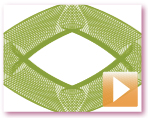
Symbols, blends, and nested SymmetryWorks patterns, combined with the multi-replica feature, greatly simplify the creation of guilloché patterns and shapes.
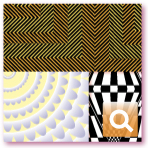
Support for nested patterns, blends, and compound shapes lets you create illusions of movement, vibration, pulsation, flicker, moiré, 3D, and other effects indispensable for making optical patterns and op art.
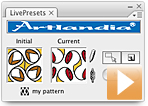

Link your SymmetryWorks patterns with other objects in your artwork. Update the whole artwork instantly as you edit the patterns. The link works its magic through a pattern swatch that you export from SymmetryWorks. LivePresets recognizes SymmetryWorks patterns and takes care of automatic updates.
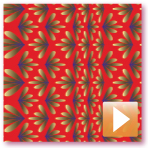
Interactively edit symbols inside your SymmetryWorks patterns. If a symbol contains another SymmetryWorks pattern, you can edit it too. Then both SymmetryWorks patterns update at once. This is a big timesaver.

Mix elements of different symmetries. With LivePresets, you can add arbitrary (not necessarily symmetrical) elements to any SymmetryWorks pattern.
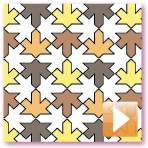
Create different versions of your patterns and switch them on the fly. Instantly see how your changes affect the target artwork. For example, expand and colorize repeating units in one LivePresets swatch and continue developing the original SymmetryWorks pattern in another.